Showing posts with label Modify command. Show all posts

Thursday, March 12, 2009

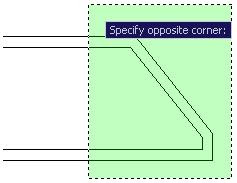
Stretch 拉伸


Change part of an object's shape

Parallel
 
Intersect
 

Defining the stretch operation with a crossing window or crossing polygon is critical

Chamfer 倒角


Create an angled intersection on objects


Create a line between two nonparallel lines as a beveled edge

Distance Option

Specify Distance 1 and Distance 2
Distance 1 will apply on the 1st select object

Angle Option

Specify Distance and Angle
Distance will be apply on the 1st select object

Method Option
Switch between the Distance or Angle methods


Fillet 圆角


Create radius geometry connecting two objects

Zero Radius
 
Act as a Trim command

Specify Radius
 
Rounded off corner

No Trim Option


Polyline Option

Fillets all vertices of a polyline's object like Rectangle, Polygon

Multiple Option
Create multiple fillets without restarting the command

Parallel Lines

Current fillet radius is ignored and an arc is created tangent to both parallel objects

Shift + Select
Override the current radius value and create a radius of 0 Shape corner

Break 打断


Separate objects into two

Specify 1st and 2nd point
Breaks the object leaving a gap between the two remaining pieces

Break at Point 打断于点


Breaks the object at one point, leaving the ends coincident (touching)

Circles break in a counter-clockwise direction
Use Break command only when there are no cutting edges

Join 合并


Combine individual segments of like objects into a single object

Line + Line

All will join
Both lines must be collinear

Line + Polyline
With gap:       Not join
Without gap:  Join
                    Polyline must be a source object
Overlap:        Not join

 
Polyline and line can be join in coplanar

Arc + Line

Not join

Arc + Polyline

Join

Arc + Arc

2 arcs must share the same circular path
Same center point, same radius


Join Direction: CCW

Offset 偏移


Creates a new object whose shape parallels the shape of a selected object


1. Specify the offset distance
2. Select the object
3. Pick a side to offset

Multiple
Makes multiple offsets with a same distance
  

Through
Offset object through a point
 
Without knowing the distance, snap through a point as a reference distance

Erase
Erases source object after offset

Layer
Offsets object to source layer or current layer

Extend 延伸


Lengthen objects to boundary edges

1. Select the objects to serve as boundary edges


2. Select the objects to extend
     

Boundary edges can be any object with edge
Shift + Select: Switch between Trim and Extend command
Cutting and boundary edges do not have to intersect the object being trimmed or extended

Trim 修剪


Shorten objects to cutting edges

1st Select objects: Cutting edges


2nd Select objects: Trim parts


Cutting edges can by any object with edge

Thursday, March 5, 2009

Scale 缩放


Change the size of existing geometry


Scale factor: Decrease - less than 1
                   Increase > 1

Copy Option
Scale a copy of the selected geometry


Reference Option
Specify the new length after scale
Specify Reference length
Enter New length

It is often quicker and more accurate than calculating a scale factor

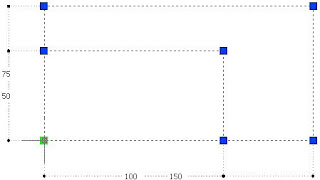
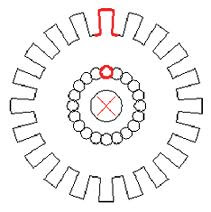
Array 阵列


Duplicate existing objects in a rectangle or circular (polar) pattern


Rectangular Array

1. Enter the number of rows and columns
2. Row offset: distance to offset each row

3. Column offset: distance to offset each column
4. Angle of array: angle for the pattern
5. Select objects: last step

Polar Array

1. Center point: pick the center point
2. Total number of items: includes the original object
3. Angle to fit: negative number array in clockwise
4. Select objects: last step

New feature
Zoom and Pan while preview