Explode a polyline, all the attributes associated with polylines, such as width, are lost and a separate object is created for each segment
Thursday, March 19, 2009

Polyline 多段线

Polylines are special types of entities that incorporate segments such as lines and arcs into a single object

Use polylines can easily calculate a perimeter distance or the area of an irregular shape
Sharp corners are maintained in the offset

Polylines also have special properties:
■ Global Width

■ Start Segment Width
■ End Segment Width

Create Polyline
Create line and arc segments as a continuous single object

Pline - Arc - Line - Width (start, end width)
Polyline Edit 编辑多段线

Change certain characteristics of a polyline

Double-click on polyline to edit mode

Open


Join
Convert a line or arc into a polyline


Width
Tool Palettes 工具窗口

Organize and access the tools you use most often

Tool Palettes window contains a tab for each tool palette
Add tools to Palette
2 ways:
■ Drag blocks or drawing files from DesignCenter
■ Right-click and drag a single piece of geometry from the drawing to a palette
Insert objects from Tool Palette
Click an object and insert into the drawing
DesignCenter 设计中心

Reuse data from another drawing in the active drawing
Saves design time and helps ensure consistency across designs and among designers

 Tree View
 Preview
 Description
Tree View, Preview, Description can be turn off
Insert blocks from DesignCenter
2 ways:
1. Drag the block from DesignCenter into the drawing
2. Double-click on the block

Can set the Scale, Rotation angle
Insert Block 插入图块

Insert blocks from drawing database or any location in the hard disk

1. Specify the name of a block to insert
2. Select a drawing file to insert as a block
3. Preview of the selected block
4. Specify the insertion point on-screen
5. X, Y scaling factors
Different X, Y scale, the block will scaled proportionately
6. Specify the rotation angle of the block
Insert a drawing file, the drawing geometry references will come with it
Wednesday, March 18, 2009
Create Blocks 创建图块

Creates a single object out of multiple objects so they appear and behave like a single piece of geometry
Block Definition: Block stored in the drawing database
Block Reference: A visible block definition in a drawing

1. Name: Specify the Block name
2. Base point: Click the button to define the Base point (insert point)
It's important to specify the base point for the block, otherwise the base point will be 0,0,0
3. Select the options
Retain: left as individual objects
Create a similar block
Convert to block
Using now
Delete
Pre-create all blocks, use later
4. Behavior
Annotative: Display same size in the different viewport scale
Scale uniformly: Same scale on both X, Y axis
Allow exploding
5. Description
6. Select objects
Tuesday, March 17, 2009
Block 图块
A collection of objects grouped together into a single object

A object form by individual lines, arcs, and polylines, and repeating use in same drawing or other drawing, it's good to convert it to block
Block Behave
1. Retain Original Properties
Create blocks on any layer other than "0" layer

Do not use ByBlock or ByLayer for the properties
Create layer: Screw_T
Color: Blue
Linetype: Continuos
Lineweight: 0.3

Insert layer: Assembly
Color: Green
Linetype: Dashed
Lineweight: Default
2. Inherit Properties from Current Layer
Create blocks on "0" layer
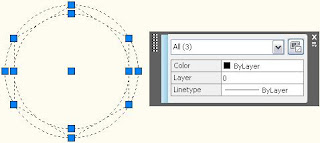
Use ByLayer for the properties
Create layer: 0 layer
Color: Black
Linetype: Continuos
Lineweight: Default

Insert Layer: Assembly
Color: Green
Linetype: Dashed
Lineweight: Default
3. Inherit Properties from Current Property Settings
Create blocks on any layer

Use ByBlock for the properties
Create layer: Screw_T
Color: Black
Linetype: Continuos
Lineweight: 0.3

Insert layer: Assembly
Color: Green
Linetype: Dashed
Lineweight: Default
Subscribe to:
Posts (Atom)